| Upgrade Method | Difficulty Level | Operation Time | Applicable Situation |
|---|---|---|---|
| Seek Qtenboard Support | ⭐ Easiest | 5–10 minutes | All users, no operation experience needed |
| OTA Online Upgrade | ⭐⭐ Very Easy | 8–15 minutes | Stable network, normal system status |
| USB One‑click Upgrade | ⭐⭐⭐ Easy | 6–12 minutes | Normal boot, no network available |
| USB Forced Upgrade | ⭐⭐⭐⭐ Medium | 7–14 minutes | System crash, frozen screen, cannot boot normally |
We understand that firmware maintenance and system stability are critical to your daily operations or project delivery. If you are currently using other brands and facing issues such as unhelpful after-sales services, paid system upgrades, or a complete lack of technical responses, the Qtenboard team is still here to offer advice.
At Qtenboard, we don't just manufacture premium hardware; we build long-term trust through absolute hardware and software lifecycle support. If your current display solutions are slowing down your business growth, it might be time to experience a seamless partnership.
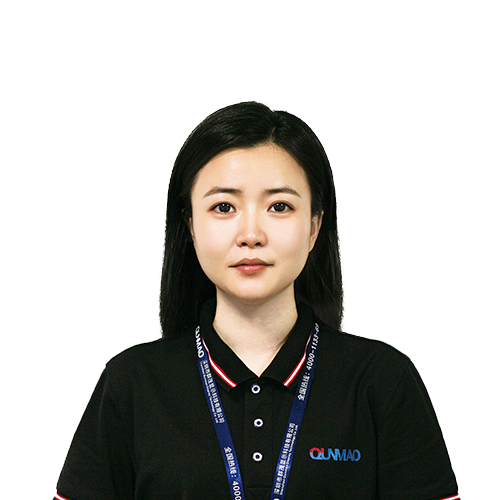
CEO | Interactive Display & Collaboration Solution Expert
I am the founder of Qtenboard, bringing over 17 years of hands-on expertise to the touch display industry. Drawing on the global management perspective gained through my EMBA studies at ShenZhen University, I lead my team in optimizing every stage of our operations—from product definition to high-efficiency supply chain management—ensuring our manufacturing capabilities remain at the forefront of the industry.
As the leader of Qtenboard, I specialize in providing tailored OEM/ODM solutions for interactive whiteboards, LCD video walls, digital signage, and industrial-grade touch terminals. Backed by our 330,000 m² modern industrial park in Shenzhen, we maintain full-lifecycle control over industrial design, precision manufacturing, and rigorous performance testing.
With nearly two decades of project experience, Qtenboard’s display solutions are now deployed in over 120 countries and regions, earned the trust of more than 15,000 enterprise customers worldwide. If you are seeking a responsive partner with a deep manufacturing foundation for your customized touch display projects, my team and I are ready to support your vision with professional excellence.

 ukr
ukr
 EN
EN  pt
pt  spa
spa  th
th  vie
vie  aze
aze  bel
bel  est
est  lav
lav  ru
ru