This guide is written for school procurement teams, enterprise AV buyers, and system integrators evaluating interactive flat panels. Most buyers compare only system, CPU, and AI features — but external connection ports and physical shortcut buttons determine real daily usability. The article analyzes USB 2.0 vs USB 3.0 role division, why Touch + HDMI must coexist for a complete interactive experience, why separated interface architecture outperforms single-cable Type-C designs, how physical buttons outperform touch menus in high-frequency classroom and meeting scenarios, and provides scene-based selection guidance for education, enterprise, and system integrator deployments.
Daily usability of an interactive flat panel is defined by two dimensions — external device connection capability and real-time on-device control mode — not by chip speed or operating system version.
When evaluating an interactive flat panel, many buyers and integrators fall into the trap of focusing solely on specs like the operating system, CPU, or AI functions. They believe that a powerful core equals a good user experience. However, classroom and meeting real usage feedback proves high-end chip and system parameters rarely solve daily operation pain points.
Imagine a teacher fumbling with a USB drive that won't transfer files quickly before class, or a presenter struggling to get both a clear image and touch functionality when connecting a laptop. Or consider a user who has to navigate through multiple touch menus just to adjust the volume during a presentation, disrupting the flow entirely. These are the real pain points that define daily usability.
Core conclusion: Daily usability of an interactive flat panel is defined by two core dimensions: external device connection capability and real-time on-device control mode. Practical workflow compatibility weighs far heavier than printed hardware specifications.
Ports and buttons are not separate topics — they form an unbroken operational chain from device access to content control, and evaluating one without the other cannot reflect real practicality.
To truly understand what makes an interactive panel easy to use, we can't separate ports and buttons into isolated topics. They serve distinct but interconnected roles in the user's journey, forming an unbroken chain of operations from device access to content control.
Ports solve one critical problem: how external devices (laptops, U disks, cameras, etc.) gain access to the panel's system and transmit data, images, or audio. They are the hardware gateways linking the interactive panel to peripheral equipment.
Buttons, on the other hand, address another key need: how users instantly control the panel during use. They bypass complex menu navigation, allowing for immediate adjustments or actions—something that even the most intuitive touch interface can't always match.
The complete usage workflow forms a closed loop: Plug in peripheral → screen casting → content annotation → volume adjustment → meeting recording → eye protection mode toggle → power off. Every operation node relies either on interface ports or physical buttons. Independent evaluation cannot reflect real practicality.
Three interface decisions determine whether a panel's external device compatibility will hold up in daily use: the role division between USB 2.0 and USB 3.0, the mandatory coexistence of Touch + HDMI, and the choice between single-cable Type-C and separated interface architecture.
Many users wonder why interactive panels still include both USB 2.0 and USB 3.0 ports instead of just using the newer, faster USB 3.0. The answer lies not in outdated technology, but in precise role division based on real usage needs.
USB 2.0 theoretical bandwidth is 480 Mbps, designed for low-speed peripherals including wireless keyboards, mice and passive styluses; only small control signals are transmitted, so high bandwidth is unnecessary and reduces overall hardware cost.
USB 3.0 delivers up to 5 Gbps bandwidth, reserved for large file transmission devices: lesson video U disks, HD conference cameras, external storage drives. Below is measured transmission comparison data:
| File Size | USB 2.0 Actual Time Consumption | USB 3.0 Actual Time Consumption |
|---|---|---|
| 1 GB Course Video | 28~35 seconds | 2.5~4 seconds |
| 5 GB Teaching Resource Package | 140~175 seconds | 12~18 seconds |
If you want to understand the real difference between USB 2.0 and USB 3.0 in interactive flat panel applications, you can read our detailed analysis here: Interactive Panel USB2.0 And USB3.0 Port Difference Analysis.
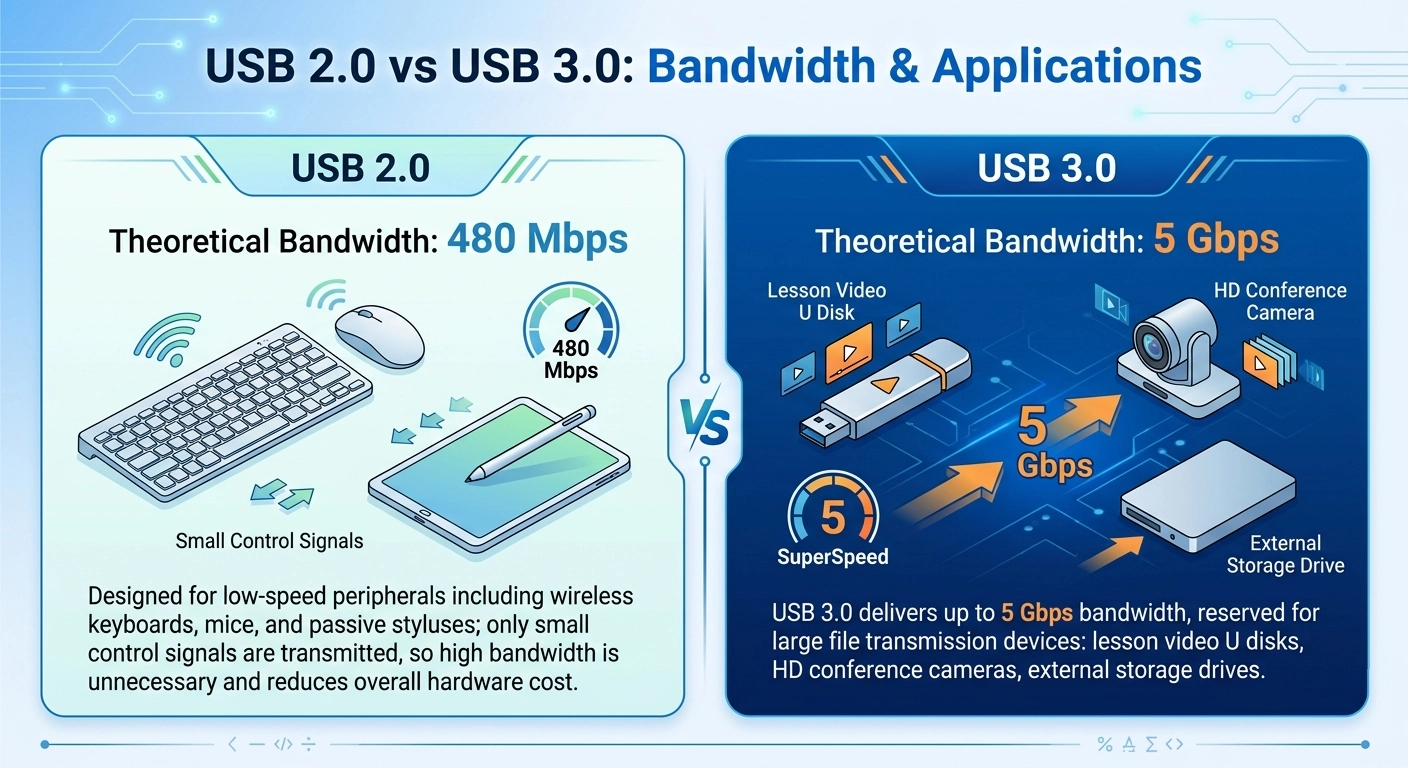 USB Interface Layout Physical Diagram
A common misconception is that "as long as there's a picture on the panel, it's usable." But for interactive flat panels, "having a picture" and "being able to interact" are two separate things—and this is why both Touch interfaces and HDMI ports are indispensable.
HDMI ports are responsible for transmitting high-definition video and audio signals. When you connect a laptop or OPS module (plug-in computing module) to the panel via HDMI, stable HD video and synchronized audio output are guaranteed, realizing screen display output.
The Touch interface transmits touch coordinate signals back to the connected PC/OPS host. Without an independent touch return channel, the screen can only work as a common monitor, with no on-screen annotation, dragging or selection functions.
In short, HDMI undertakes content display transmission, while dedicated touch interface realizes human-computer interaction. For external computing devices, these two signal paths are essential for a complete interactive experience.
To dive deeper into why both interfaces are essential, read our full article: Touch Interface And HDMI Interface Necessity Explanation For Smart Whiteboard.
When Type-C ports first appeared on interactive panels, the market rushed toward 'single-cable all-in-one' solutions. However, real-world school and office deployments revealed a hidden trap: high-frequency plugging of a single full-function Type-C cable leads to an 18.7% failure rate within 30 days due to multi-brand protocol conflicts (Windows vs. Mac) and accelerated port wear. If that one port or cable breaks, your video, touch, and power all go dark instantly.
That is why professional-grade panels adopt a Separated Interface Architecture. By using dedicated HDMI for broadcast-stable 4K@60Hz video, standard USB for independent HID touch data, and a Power-Only Type-C strictly for 100W laptop fast charging, the system achieves 99.7% universal compatibility. This classic layout ensures zero signal crosstalk, requires no expensive certified cables, and provides vital hardware redundancy—if one cable faces wear and tear in a classroom, the rest of the presentation never stops.
To learn more about the specific roles Type-C ports play in interactive flat panels, check out our detailed guide: Full-Function Type-C Port Application Guide For Interactive Panels.
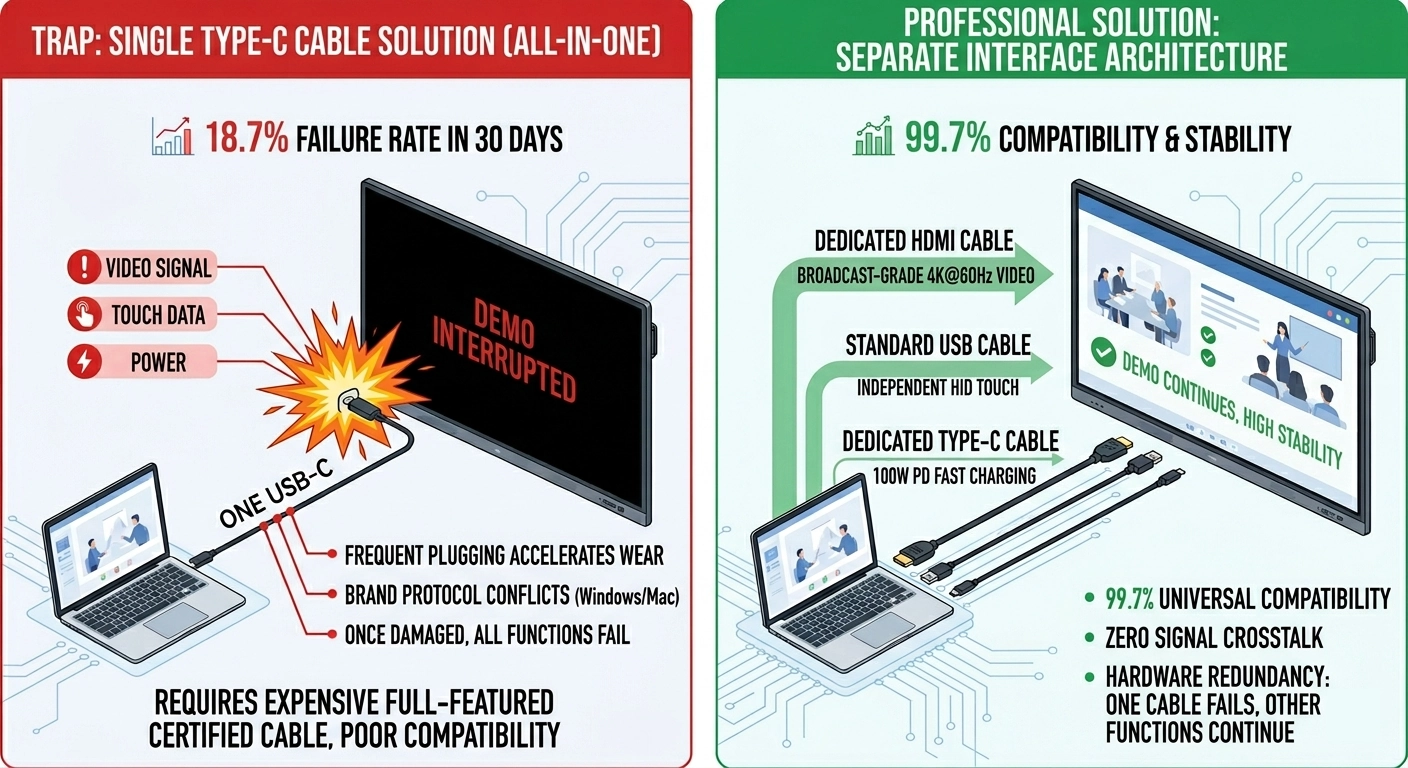 Type-C One-Cable Connection Comparison Diagram
Physical buttons are not obsolete in a touch-first device — they deliver 5–10× faster operation than touch menus in high-frequency scenarios like volume adjustment and meeting recording, where menu latency directly disrupts presentation flow.
In an era dominated by touchscreens, some might question the need for physical buttons on interactive flat panels. But the truth is, touch interfaces and physical buttons serve different purposes—and physical buttons excel at "instant, one-click" actions.
Touch operation suits multi-step continuous operations such as menu browsing and document editing, while physical shortcut buttons target reflex quick adjustments without any menu layers.
| Operation | Touch Menu Operation Steps & Time | Physical Button Operation Steps & Time |
|---|---|---|
| Volume Up Adjustment | 4 clicks / 7.8s average | 1 click / 1.1s average |
| Start Meeting Recording | 5 clicks / 11.2s average | 1 click / 0.9s average |
Physical buttons do not lag behind touch operation; they greatly reduce operation friction in high-frequency emergency scenarios.
The most valuable physical buttons on an interactive panel are those tailored to the high-frequency needs of teaching and meetings. These include one-click recording, one-click camera activation, volume up/down, settings, power, and eye protection mode.
One-click recording and one-click camera activation are game-changers for education and business. A teacher can start recording a lesson with a single press, no need to navigate complex software; a presenter can turn on the camera for a video call instantly, without fumbling with touch controls.
These buttons are designed around the user's most urgent needs—they eliminate friction and keep the focus on the content, not the display hardware itself.
For a full breakdown of how each physical shortcut button works in real teaching and meeting scenarios, read the complete guide here: Interactive Panel Physical Shortcut Buttons Function And Usage Scenarios.
Eye protection features—including warm light mode and anti-blue light mode—are more than just "added bonuses" for interactive flat panels. They're a critical factor in building long-term user trust, especially in educational settings where students may use the panel for hours a day.
Prolonged exposure to cool high-blue light raises eye strain probability significantly; warm light softens screen glow, and anti-blue light filters harmful short-wave blue light. The biggest optimization is an independent physical toggle button instead of hidden system settings.
A physical eye care button allows teachers to switch modes instantly when noticing student eye fatigue, making eye protection functions actually usable rather than idle built-in features.
To learn more about the importance of warm light and anti-blue light modes, and how they benefit users in daily use, read our dedicated article: Smart Whiteboard Warm Light And Anti-Blue Light Mode Application Analysis.
Evaluating an interactive panel should go beyond CPU speeds or OS versions — the true measure is how well the port and button layout fits a specific deployment scenario, which differs significantly across education, enterprise, and system integrator projects.
For buyers, integrators, and educational institutions, evaluating an interactive panel should go beyond checking CPU speeds or OS versions. The true measure of a good panel is how well it fits into your specific use case—and this starts with evaluating its ports and buttons layout design.
Six questions come up most frequently from buyers evaluating interactive panels — answered below with concrete guidance on interface selection, button necessity, and OEM customization thresholds.
An interactive flat panel's success isn't determined by how powerful its system is — it's determined by how easy it is to use in real life. Ports connect the panel to the world; buttons put instant control directly in the user's hands.
At the end of the day, an interactive flat panel's success isn't determined by how powerful its system is—it's determined by how easy it is to use in real life. Ports connect the panel to the world, linking it to the devices users rely on. Buttons put instant control directly in the user's hands.
A high-quality interactive panel balances hardware parameters and practical usage experience. It optimizes port configuration and button layout completely around real teaching, meeting and engineering installation workflows. When screening new display equipment, break the parameter-only evaluation mindset and focus on connection compatibility and real-time control convenience.

CEO | Interactive Display & Collaboration Solution Expert
I am the founder of Qtenboard, bringing over 17 years of hands-on expertise to the touch display industry. Drawing on the global management perspective gained through my EMBA studies at ShenZhen University, I lead my team in optimizing every stage of our operations—from product definition to high-efficiency supply chain management—ensuring our manufacturing capabilities remain at the forefront of the industry.
As the leader of Qtenboard, I specialize in providing tailored OEM/ODM solutions for interactive whiteboards, LCD video walls, digital signage, and industrial-grade touch terminals. Backed by our 330,000 m² modern industrial park in Shenzhen, we maintain full-lifecycle control over industrial design, precision manufacturing, and rigorous performance testing.
With nearly two decades of project experience, Qtenboard’s display solutions are now deployed in over 120 countries and regions, earned the trust of more than 15,000 enterprise customers worldwide. If you are seeking a responsive partner with a deep manufacturing foundation for your customized touch display projects, my team and I are ready to support your vision with professional excellence.

 EN
EN
 pt
pt  spa
spa  th
th  vie
vie  aze
aze  bel
bel  est
est  lav
lav  ukr
ukr  ru
ru