A university lab whiteboard upgrade is not a screen replacement. It is a workflow upgrade that must connect scientific visualization, instrument data, digital annotation, hybrid teaching, campus IT management, and multi-lab standardization into one deployable system.
Modernizing a university laboratory display is rarely as simple as swapping a projector for a flat panel. The display sits in the middle of a daily workflow — the lecturer explaining a procedure, the technician reading instrument output, students collaborating around a bench, a remote participant joining a live experiment. When the display is chosen without considering how data, people, and software move through the room, the result is technically new but operationally still old.
Traditional laboratories accumulate the same pain points: whiteboard notes that cannot be saved or distributed after a session, projectors that wash out under fluorescent lighting, lecturers juggling between a laptop, a projector, and a physical whiteboard, back-row students who cannot read instrument readings or microscope images, instrument outputs that cannot be shared with the whole class, hybrid students who miss the demonstration entirely, and an IT team supporting a different device model in every room. These are not display problems; they are workflow problems.
This guide builds a complete upgrade framework for universities: laboratory types, pre-upgrade audits, core specifications, laboratory safety, installation, procurement, supplier evaluation, and total cost of ownership. It is written for lab directors, campus IT and AV teams, procurement officers, system integrators, and education distributors who need an evidence-based approach to university lab whiteboard upgrades — not a product brochure. Qtenboard, a factory-direct manufacturer of 55–110 inch 4K interactive displays with multi-touch, anti-glare glass, Android/Windows dual systems, DMS management, and OEM/ODM support, appears as one credible option, not the only one.
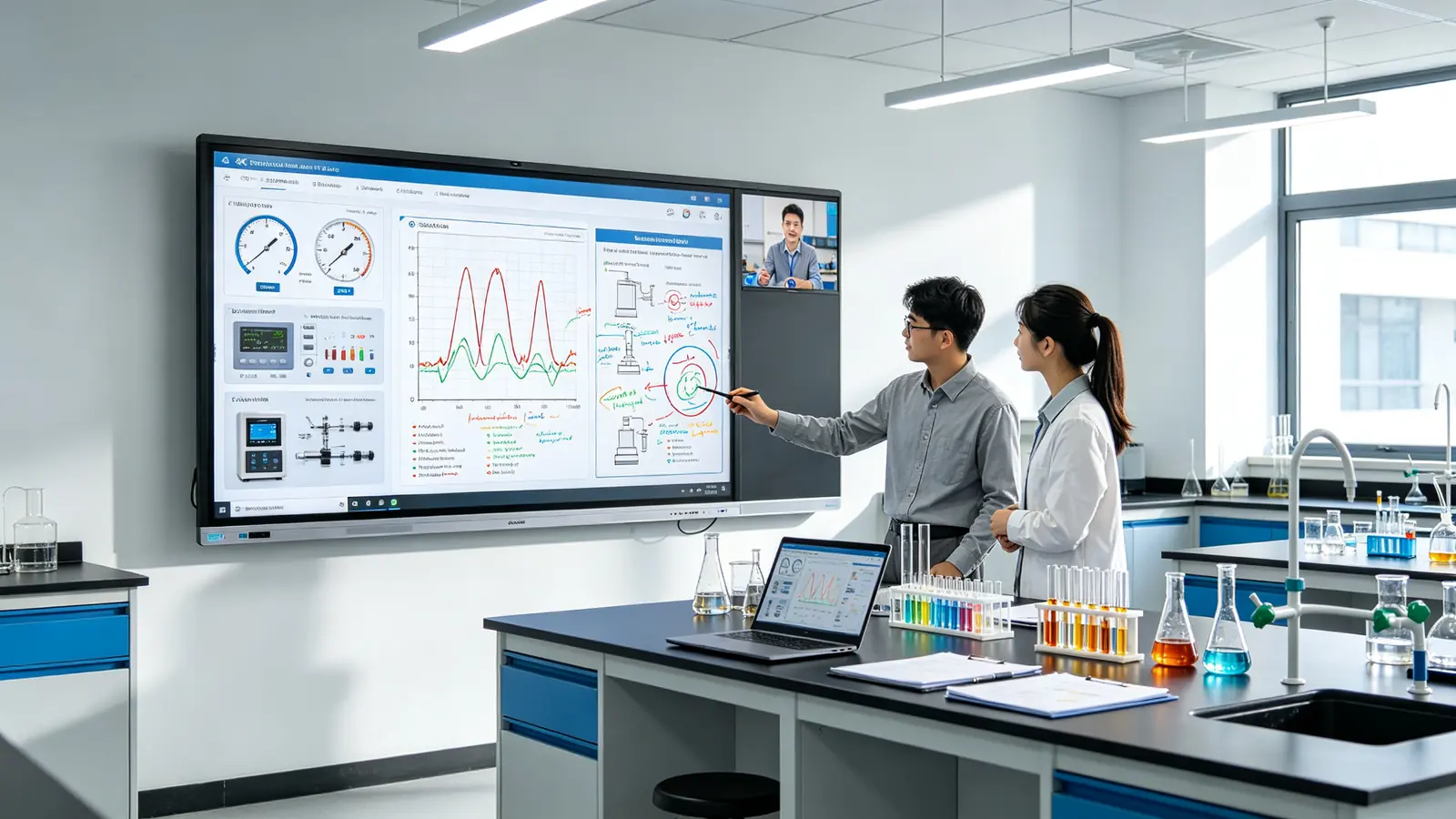
| Lab Type | Suggested Size | Must-Have Configuration | Lab-Specific Priority |
|---|---|---|---|
| General teaching lab (10–25 students) | 75–86" | 4K, touch, whiteboard, wireless casting | Teaching clarity, easy operation |
| Engineering lab (15–30) | 86"+ | 4K, precise touch, Windows OPS, USB-C | CAD, diagrams, data review |
| Science / medical lab (10–25) | 75–86" | 4K anti-glare, microscope / document camera input | Image detail, cleanability |
| Computer / data lab (15–30) | 75–86" | 4K, Windows, multi-window, USB-C | Code, software, analytics |
| Research collaboration room (4–10) | 65–86" | 4K, secure casting, video conferencing | Research meetings, hybrid collaboration |
| Large lecture-lab (40+) | 98-110" və ya çoxluq ekranı | 4K, high brightness, long-distance readability | Large-group instruction |
| Multi-lab campus rollout | Standardized 65/75/86" | DMS, OTA, batch supply, spare parts | Standardization, lifecycle efficiency |
In short: small research and tutorial labs typically need 55–65 inch displays; standard teaching laboratories need 75–86 inches; large teaching laboratories need 86–98 inches; lecture-style spaces need 98–110 inches or multiple displays. Core must-haves are 4K resolution, low-latency touch, anti-glare glass, wireless screen sharing, instrument connectivity, and centralized device management. Depending on the lab, add Windows via OPS, EDLA-certified Android, AI writing tools, custom UI, or OEM/ODM supply options.
Start with laboratory types, instrument connectivity, the laboratory safety checklist, and multi-lab standardization.
Focus on network and security, DMS management, system compatibility, and acceptance standards.
Jump to interfaces, installation planning, audio/video design, and project support requirements.
Use the TCO model, supplier evaluation criteria, procurement checklist, and certification requirements.
Review OEM/ODM, MOQ, certification, lead time, and packaging options for multi-site education projects.
Asmart whiteboard for laboratory spaces only earns its cost when its configuration matches the actual teaching and research activity in the room.
General teaching labs host undergraduate practical courses, foundation science classes, lab introductions, demonstration experiments, and small-group laboratory teaching. The display is primarily an instruction tool: it must show procedures clearly, render SOPs and safety content legibly from the back row, and switch quickly between slides, video, and live demonstration. Priority configurations are 75–86 inch 4K panels with touch annotation, wireless screen sharing, a digital whiteboard, file save and share functions, and controls simple enough that lecturers and technicians can operate them without IT support. Reliability matters more than processing power.
Engineering, electronics, CAD and simulation teaching, manufacturing technology, robotics, automation, and product design review rooms put different demands on a display. Students need to read fine line work: CAD drawings, circuit diagrams, technical documentation, and simulation output. Precise touch and pen input matter because reviewers annotate designs in real time. Priority configurations are 86 inch or larger 4K displays with Windows OPS or an external workstation, USB-C, HDMI, LAN and USB connectivity, multi-window operation, and PDF or design-file annotation. A university lab interactive display here is closer to an interactive engineering workstation than to a classroom projector.
Chemistry, biology, life sciences, medical simulation, pharmaceutical teaching, and microscope demonstrations depend on image detail and hygiene. Priority configurations are 75–86 inch 4K anti-glare displays with document camera and microscope camera input, smooth 4K video playback, easy-to-clean glass surfaces, and digital annotation for images, graphs, and procedures. Because wet-lab environments introduce moisture and chemical exposure, cleaning protocols and environmental suitability must be confirmed with both the supplier and the university safety team. For science and medical rooms, the interactive display for science lab settings should be evaluated as part of the bench-to-display imaging chain.
Programming, data science, AI, cybersecurity, software demos, and research data workshops are text- and dashboard-heavy. Students must read small fonts, code, tables, and analytics panels from a distance, and multiple students often cast their own screens for review. Priority configurations are 75–86 inch 4K panels with Windows or dual-system operation, USB-C and HDMI inputs, multi-device casting, multi-window layouts, and integration with campus network and account systems. For coding-heavy rooms, the operating system choice determines whether the display runs the lab's specialist software or simply mirrors a workstation.
Research group meetings, data review, journal clubs, grant planning, and cross-department collaboration need a display that behaves like a shared interactive desk. Priority configurations are 65–86 inch 4K displays with wireless presentation, secure collaboration, video conferencing, PDF and image annotation, Windows workstation support, file sharing, and controlled session data clearing. Privacy matters here: session data should be erasable and guest casting controlled, and the room should support the university's meeting platform without friction.
| Lab Environment | Qurğular | Key Procurement Priorities |
|---|---|---|
| General teaching lab | 75–86" 4K, touch, whiteboard, wireless sharing | Clear instruction, easy use |
| Engineering lab | 86"+ 4K, precise touch, Windows OPS, USB-C | CAD, technical diagrams, data review |
| Science / medical lab | 75–86" 4K anti-glare, document / microscope camera | Image detail, demonstration, cleanability |
| Computer / data lab | 75–86" 4K, Windows, multi-window | Software demos, code, analytics |
| Research collaboration room | 65–86" 4K, secure casting, video conferencing | Research meetings, hybrid collaboration |
| Large lecture-lab | 98-110" və ya çoxluq ekranı | Long-distance visibility, large-group instruction |
| Multi-lab campus rollout | Standardized 65/75/86" + DMS | Central management, lifecycle efficiency |
Two patterns emerge across all lab types. First, size and operating system should derive from the content students must read and the software the room runs, not from a generic classroom formula. Second, successful upgrades standardize configurations across similar rooms so lecturers, students, and IT support staff learn one interface. That second pattern turns a series of university laboratory whiteboard upgrade purchases into a manageable multi-lab interactive display deployment.
Every failed lab AV project starts with a skipped audit. Before writing specifications or requesting quotes, document what already exists, what actually hurts, and who will use the system.
Walk every room that will be upgraded and record the current state. The inventory should cover existing whiteboards, projectors and screens, commercial displays, laboratory PCs and workstations, document cameras, microscope cameras, and data acquisition devices. On the infrastructure side, note HDMI, USB-C, USB, and LAN connections, Wi-Fi coverage, power positions, AV control systems, LMS and meeting platforms, and existing device management tools. This audit is the factual basis for the rest of the project: screen sizes, connection requirements, network upgrades, and cabling budgets all trace back to it.
Audit the workflow, not just the hardware. Ask each room pointed questions: can every student read lab data from the back row; can the lecturer annotate live data, procedures, or images; can students share content without swapping cables; can instrument output be displayed to the whole group; can the room support hybrid teaching; is whiteboard content saved and shared after class; do staff spend too much time troubleshooting connections; can campus IT update devices remotely; and is technology consistent across laboratories? Honest answers reveal whether the upgrade is about resolution, connectivity, collaboration, management, or all of the above.
A lab display upgrade touches more people than the lecturer who stands in front of it. Build the project team early: lab directors and academic departments, course lecturers and laboratory technicians, campus IT and AV teams, facilities and property staff, health and safety officers, procurement departments, students or teaching assistants, and external AV or system integrators. Each group holds a piece of the requirements: safety officers know chemical exposure limits, facilities know wall structure, IT knows network policy, technicians know which instruments must connect. Leaving any of them out produces specifications that fail in the field.
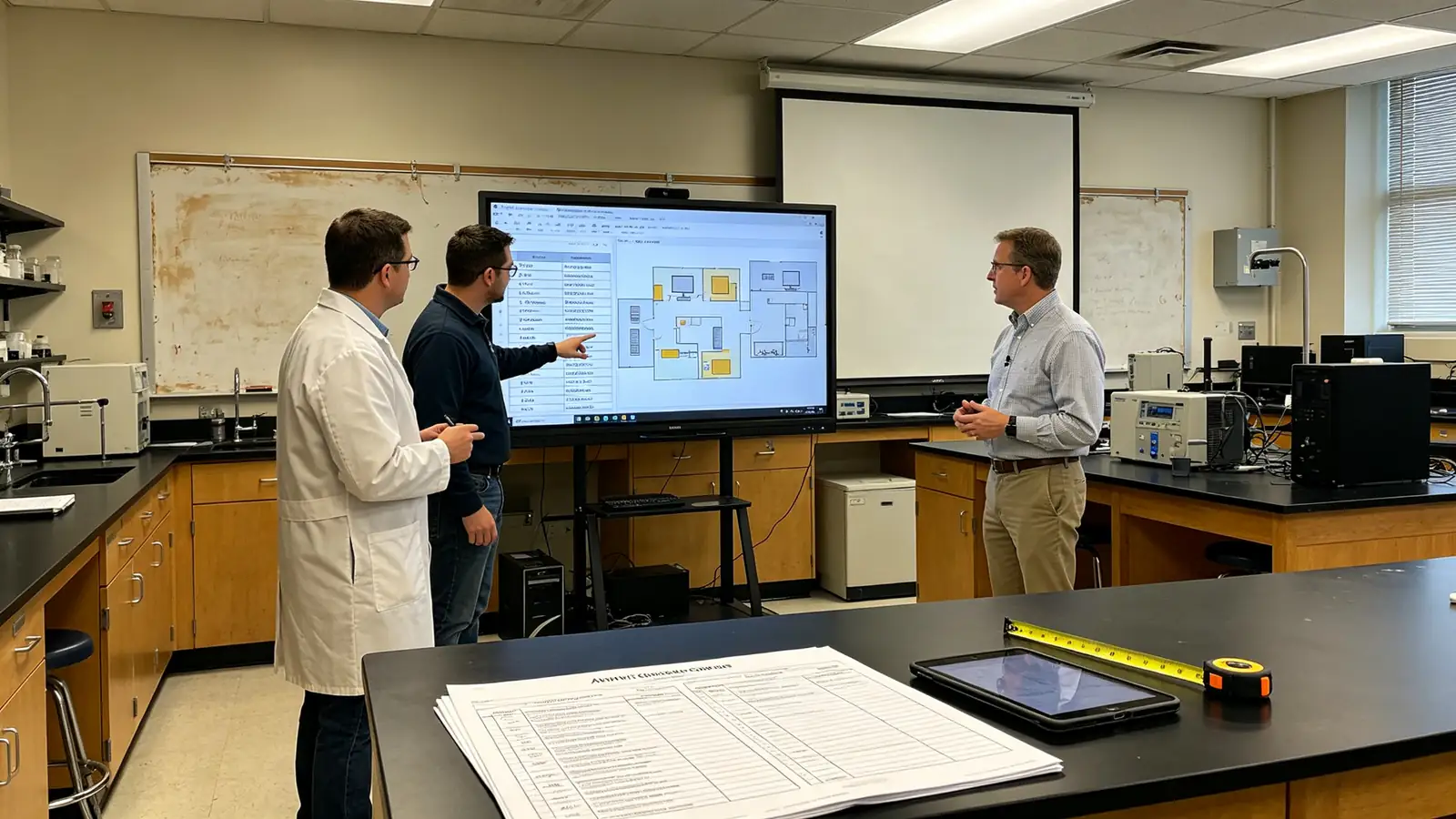
These are the specifications that separate a display which merely works from a display that changes how a laboratory teaches. Verify each one against real laboratory content before purchase.
Laboratory content is dense with fine detail: microscope images, lab videos, engineering drawings, CAD screenshots, circuit diagrams, data dashboards, coding environments, formulas, research papers, SOPs, charts, and statistical output. On a 75–110 inch surface, native 4K (3840 × 2160) is what keeps that detail readable from the back row. Confirm the panel's native resolution, that HDMI and USB-C inputs carry true 4K, that the OPS or external PC can output 4K, that multi-window performance stays smooth, and that anti-glare and brightness hold up under laboratory lighting.
Size should not be chosen by student count alone. It depends on the furthest viewing distance, bench and workstation heights, seated or standing layouts, the smallest text or data that must be readable, room lighting, wall width and mounting conditions, and sight lines around laboratory equipment. The table below is a starting point, not a substitute for measuring the room.
| Laboratory Type | Typical Group Size | Suggested Display Size | Main Application |
|---|---|---|---|
| Small research or tutorial lab | 4–10 | 55–65" | Group discussion and compact demonstrations |
| Standard teaching laboratory | 10–25 | 75–86" | Instruction, demonstrations, collaboration |
| Large teaching laboratory | 25–40 | 86–98" | Safety briefings, training, hybrid learning |
| Lecture-lab or large training space | 40+ | 98-110" və ya çoxluq ekranı | Large-group technical instruction |
In a laboratory, annotation is not decoration — it is how safety steps get marked, circuit diagrams get corrected, experiment results get reviewed, microscope images get highlighted, calculations get checked, CAD drawings get critiqued, and group discussion outcomes get recorded. Procurement requirements should include multi-point touch, low-latency writing, full-screen touch accuracy, palm rejection, distinct recognition of pen, finger, and eraser, multiple simultaneous writers, consistent touch behavior across Android and Windows, and durable protective glass. Test annotation with the actual content type the lab uses before committing to a model.
The greatest hidden cost of traditional labs is lost knowledge: whiteboard notes erased at the end of class, procedures redrawn every semester, discussion outcomes never distributed. An upgraded display should close that gap with an infinite canvas, multi-page whiteboards, PDF and PPT annotation, image and video insertion, formula and chart drawing, handwriting-to-text conversion, export to PDF and images, QR-code sharing, cloud or LMS sharing, reusable experiment templates, and session records students can access after class. When evaluating a higher education interactive whiteboard, ask how content leaves the room — not just how it appears on screen.
A laboratory display earns its place by connecting to what is already on the bench: laboratory PCs, Windows workstations, MacBooks, data loggers, microscope cameras, document cameras, sensor dashboards, HDMI instruments, medical simulation systems, and audio systems. Verify the panel offers the ports the room actually needs — HDMI inputs, USB-C video input, USB touch-back, USB-A, LAN, Wi-Fi, Bluetooth, audio input and output, DisplayPort where required, an OPS slot, and external camera compatibility. Connectivity should be validated with real instruments before purchase, because adapters and converters add failure points invisible in a datasheet.
The operating system determines whether the display is a standalone teaching tool or a full laboratory workstation. Android suits whiteboarding, casting, media playback, and quick teaching sessions. Windows — via an OPS module or external PC — is usually required for lab software, coding, data analysis, Office, and specialist applications. Dual-system configurations give mixed teaching and research environments maximum flexibility but demand stronger IT management. External workstations make sense for research or software-intensive labs, provided 4K output, touch-back, and USB compatibility are confirmed. Before purchase, ask: is Windows built in, on OPS, or external; can existing lab software run on it; does touch-back work with the external workstation; can campus endpoint security and management software be installed; and is the OS upgrade path defined?
| Quraşdırma | Ən yaxşılıqlar | Key Considerations |
|---|---|---|
| Android: | Whiteboarding, casting, media, quick teaching sessions | Confirm required education apps and account controls |
| Pəncərə Adı | Lab software, coding, data analysis, Office, specialist applications | Requires OPS or external PC |
| Dual system | Mixed teaching and research environments | More flexible, but needs stronger IT management |
| External workstation | Research or software-intensive labs | Confirm 4K, touch-back, and USB compatibility |
Hybrid laboratory teaching is a system, not a display feature — camera, audio, network, software, and experiment viewing must be designed as one workflow. Decide camera placement for the lecturer and the bench, whether a document or microscope camera feeds the session, how microphones capture lecturer and students, whether echo cancellation and noise suppression are adequate, how speakers cover an equipment-dense room, which platform is used (Teams, Zoom, Google Meet, or a university system), how screen sharing and remote annotation work, and whether recording is permitted by policy. Remote participants must see the lecturer, the bench, the instrument output, and the annotation — planning those four views is the actual design work.
Vacib A large interactive display alone does not create a hybrid laboratory. Universities should design the camera, audio, network, software, and experiment-viewing workflow as one system.
Displays connected to campus networks are endpoints, and they need endpoint discipline: wired LAN and managed Wi-Fi, VLAN or network segmentation, controlled guest casting, user account permissions, automatic clearing of session data, application installation controls, and camera and microphone permission policies. On the management side, campus IT should expect remote monitoring, OTA updates, batch configuration, device locking, remote reboot, failure alerts, and an asset inventory — the core capabilities of a DMS platform. For campuses running a multi-lab interactive display deployment, management capability is not optional; it is the difference between a fleet and a collection of screens.
Laboratory displays live harder lives than office displays. Look for tempered protective glass, a durable enclosure, an anti-glare surface, cable protection, easy-to-clean surfaces, thermal management for closed rooms, safe mounting, secure cable routing, and maintenance access. One warning applies to every lab project: do not assume a standard interactive display is chemical-resistant, waterproof, dustproof, or suitable for hazardous environments — confirm environmental suitability with the supplier and the university safety team before installation.
Vacib Do not assume a standard interactive display is chemical-resistant, waterproof, dustproof, or suitable for hazardous environments. For chemistry labs, cleanrooms, wet labs, and industrial training spaces, confirm environmental suitability with the supplier and the university safety team.
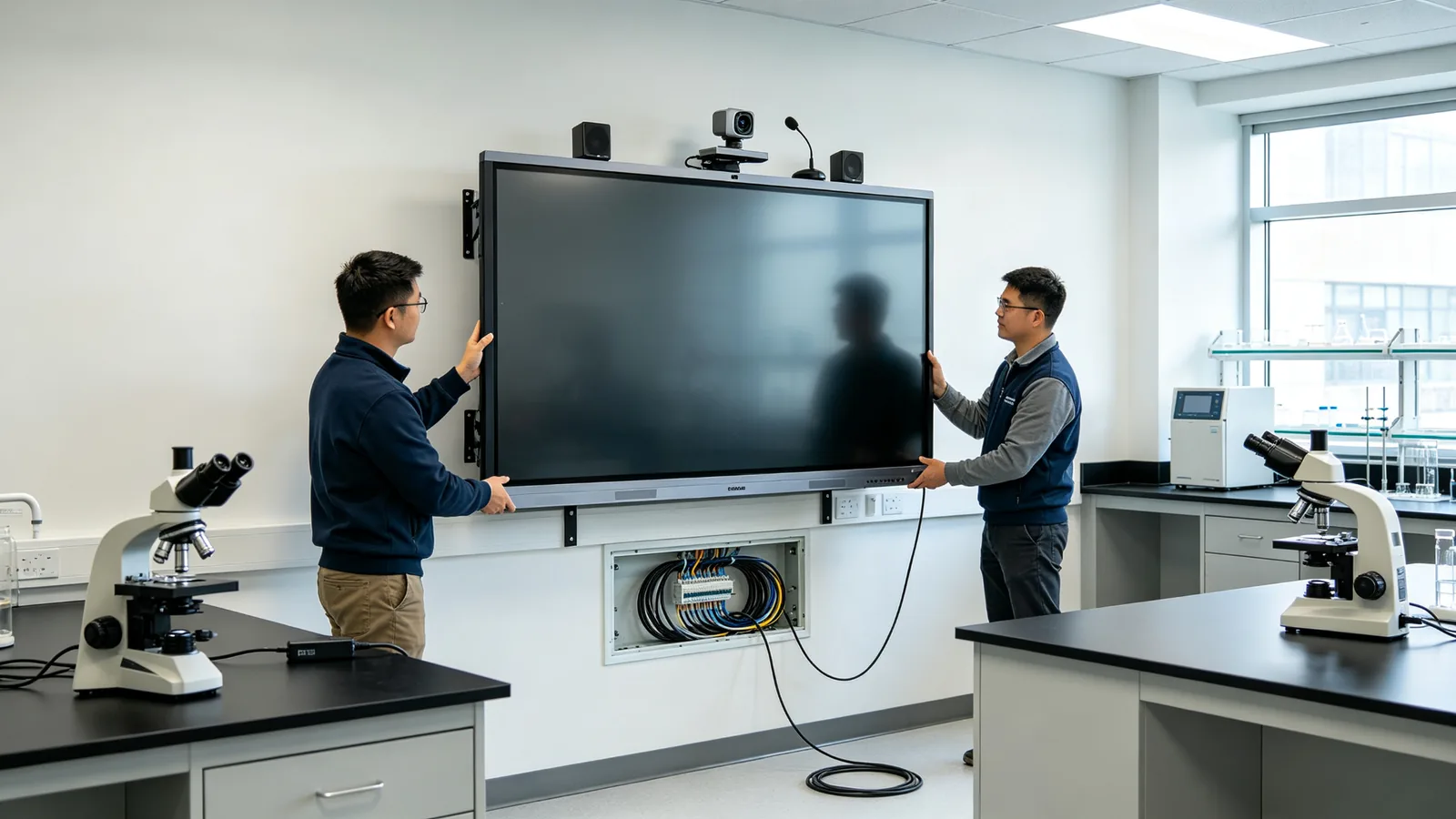
Laboratory rooms fail standard AV assumptions: benches block sight lines, chemical areas constrain placement, and ceiling and wall conditions vary by building generation. Installation planning must happen before procurement, not after delivery.
For fixed installations, verify wall structure and load capacity, the display's VESA pattern and weight, mounting height relative to bench lines, power and LAN outlet positions, hidden cabling options, service clearance, camera placement above or beside the panel, and safe distance from wet or chemical work areas. A wall that holds a projector screen may not hold a 110-inch panel without reinforcement; confirm this with facilities before the specification is final.
Mobile trolleys serve labs that share displays or need the screen repositioned around benches. Confirm the trolley's rated load, locking casters, tip-over stability, cable management, clearance through doors and corridors, movement around benches, power cable routing, and protection while moving. A trolley that fits the corridor but not the doorway is a project delay waiting to happen.
Before accepting an installation, test under real conditions: daylight entry, full ceiling lights, reflections from benches, side-angle visibility, small-font readability, dark charts and high-detail content, and camera and video performance under laboratory lighting. Anti-glare claims matter less than the actual viewing experience in the specific room at the specific time of day the lab runs.
Map every connection the room needs before installation day: power, HDMI, USB-C, USB touch-back, LAN, camera USB, audio cables, instrument video connections, control wiring, cable trays, and service slack for future changes. Cabling costs and wall penetration work are frequently underestimated in lab budgets; the audit from Section 3 is the input that prevents this.
Write down what the upgrade must achieve: experimental teaching, instrument data visualization, research collaboration, hybrid learning, safety training, multi-lab standardization, IT management, and content reuse. Outcomes drive every later decision.
Record lab dimensions, student capacity, viewing distances, existing AV, instruments, computer systems, network, power, lighting, wall structure, and software platforms for every room in scope.
Define one configuration per lab category — small lab, standard teaching lab, engineering lab, research room, and large lecture-lab — so similar rooms deploy identically and IT supports one interface.
Evaluate candidates with the content the lab actually uses: safety SOPs, lab worksheets, microscope images, instrument dashboards, CAD drawings, circuit diagrams, data tables, research papers, coding environments, training videos, LMS content, and Teams or Zoom sessions.
Validate display size, touch and software usability, instrument connections, user adoption, and installation quality; collect structured lecturer and student feedback before scaling, then refine the standard configuration.
Train lecturers, laboratory technicians, teaching assistants, campus IT, AV administrators, and facilities staff on startup and shutdown, wireless sharing, whiteboard use, content saving and clearing, connecting lab equipment, camera and hybrid workflows, basic troubleshooting, and the support escalation process.
Set measurable acceptance criteria for 4K display performance, brightness and anti-glare, touch response and calibration, whiteboard and annotation tools, instrument inputs, wireless sharing, Windows/Android compatibility, camera-microphone-speaker performance, network and security, DMS registration, installation safety, training completion, warranty, and documentation.
Comparing device prices alone produces the cheapest screen and the most expensive project. Budget for the full system across its lifecycle, and evaluate ROI against workflow outcomes.
Complete cost components for a university lab technology upgrade include the display itself, mounts or trolleys, OPS or external computers, camera-microphone-speaker kits, document or microscope camera integration, cabling, network upgrades, installation labor, software and DMS licensing, training, spare parts, extended warranty, and multi-campus logistics. Many of these — training, network, spare parts — never appear on an invoice quote, which is exactly why lifecycle budgeting matters.
ROI should be evaluated against the outcomes the upgrade was bought to deliver: better visibility of technical and scientific content, faster switching between teaching resources and instrument output, more consistent safety procedure delivery, less dependence on disposable whiteboard notes, easier reuse of teaching materials, improved hybrid participation, standardization across labs, and lower IT complexity through centralized management. When these outcomes are measured — fewer connection failures per class, faster content distribution after class — the TCO comparison becomes meaningful.
EDLA-certified Android panels ship with Google Mobile Services and Play access, simplifying app deployment and account integration on campus networks.
Certified peripherals and panels reduce hybrid-meeting integration risk and improve room booking and calendar interoperability.
Remote device management and zero-trust access policies are becoming baseline requirements for campus-connected displays.
Single-cable video, power, and touch simplify bench connections; AV-over-IP enables centralized signal routing across buildings.
AI features in meeting and teaching platforms improve hybrid lab sessions and reduce the burden on lecturers and technicians.
Universities increasingly standardize hardware, software, and management across faculties and campuses to cut lifecycle cost.
Procurement frameworks are adding energy-efficiency and sustainability criteria to display tenders, including standby power and packaging.
Public-sector and university tenders increasingly require documented security controls, firmware update commitments, and secure supply chains.
Student and research data captured by displays, cameras, and AI features must comply with FERPA, GDPR, and national privacy rules.
These trends reinforce the core message of this guide: procurement teams should evaluate the whole system — hardware, operating system, security, management, and compliance — because the 2026 campus display is managed infrastructure, not an appliance. For comparison frameworks and specification language, the interactive whiteboard tender specification guide Və certified whiteboard specs for schools provide additional context for institutional buyers.
Supplier selection for a university lab whiteboard upgrade should test project capability, software integration, lifecycle support, and customization depth — not only unit price.
Confirm the supplier can cover the whole campus with one product family: 55–110 inch displays, 4K panels, multiple touch technologies, Android, Windows, and dual-system options, OPS support, USB-C and 4K inputs, integrated or compatible camera and audio, wireless screen sharing, and device management. A supplier with a narrow range forces the campus to mix brands and management platforms.
University projects are multi-room, multi-stakeholder, and documentation-heavy. Evaluate multi-room planning, technical proposals, on-site surveys, sample and pilot projects, installation documentation, campus rollout plans, training materials, acceptance testing, tender documentation, and multi-site delivery. Education procurement often requires proof of similar completed projects and formal specification responses.
The display must join the university's existing ecosystem: LMS compatibility, meeting platform compatibility, network policy compliance, certification options (EDLA, Teams, Zoom), guest access control, session data clearing, DMS and OTA support, security controls, language options, and a defined software update policy. Ask the supplier to demonstrate integration with the specific platforms the campus runs, not generic claims of compatibility.
Factory capability, incoming and finished-goods testing, aging tests, certifications, warranty terms, spare parts availability, firmware support, replacement model planning, repair processes, and service response time determine how the fleet behaves in years three to five. For campuses standardizing across many labs, spare parts and firmware continuity matter as much as the initial price.
Distributors and integrators should evaluate customization depth: university branding, startup logos and UI, local languages, pre-installed applications, hardware interfaces, camera and audio configurations, packaging and documentation, CKD/SKD options, regional certifications, and phased multi-stage delivery. The smart whiteboard OEM manufacturer and supplier guide and the explain how factory-direct OEM/ODM programs differ from reseller arrangements.
55–65 inch panels for research discussion rooms and tutorial labs, 75–86 inch for standard teaching laboratories, and 98–110 inch for lecture labs, large training rooms, and major demonstrations.
4K UHD visualization, multi-touch and low-latency writing, anti-glare display options, Android and Windows workflows, OPS expansion, wireless screen sharing, PDF/PPT/image annotation, video conferencing peripherals, and centralized DMS support.
Lab type and room assessment, screen size recommendations, hardware and OS configuration, instrument connection requirements, sample evaluation, tender specifications, documentation, branding or OEM/ODM requests, delivery plans, installation and training materials, and warranty and spare parts planning.
Lab application, room size and layout, student capacity, screen size, 4K requirements, touch-point requirements, Android/Windows/OPS requirements, existing instruments and workstations, camera and audio needs, LMS and meeting platforms, network and security policy, DMS requirements, installation type, quantity and delivery plan, and certifications and warranty.
| Buyer Priority | Qtenboard Value Proposition |
|---|---|
| Size flexibility | 55–110 inch interactive display portfolio |
| Display quality | 4K UHD commercial panels |
| Touch options | Multi-touch, low-latency writing, palm rejection |
| System flexibility | Android, Windows, dual system, OPS |
| Lab connectivity | HDMI, USB-C, USB touch-back, LAN, OPS |
| Deployment support | DMS, batch supply, spare parts, multi-campus rollout |
| Project support | Tender specs, samples, installation docs, training materials |
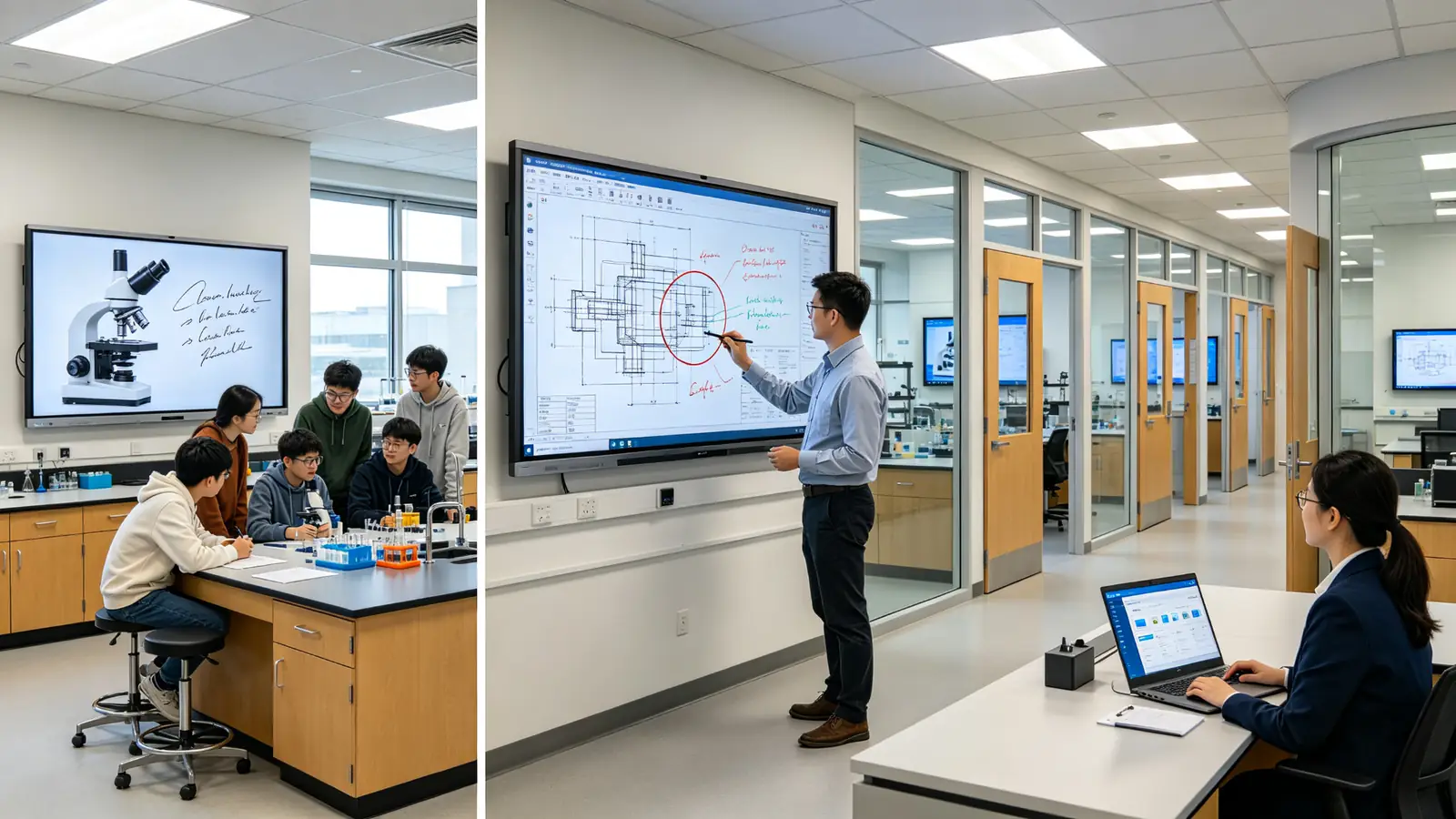
Use this checklist as the working document for specification, evaluation, and acceptance. Every line should be answered by the project team before the purchase order is issued.
Treating the lab as an ordinary classroom and choosing the screen by student count alone.
Testing only vendor demo content instead of real lab data, images, CAD files, or software.
Choosing 4K without testing brightness, anti-glare performance, and viewing angles.
Ignoring microscope, document camera, instrument, and workstation connectivity.
Buying Android-only hardware when the lab needs specialist Windows software.
Buying the display without planning hybrid-teaching cameras, microphones, and audio coverage.
Overlooking campus network, account, and data security requirements.
Failing to evaluate wall load capacity, power, cabling, and laboratory safety routes.
Choosing different models across labs with no standard configuration or DMS plan.
Skipping pilot deployment and user testing before campus-scale rollout.
Not training lecturers, laboratory technicians, and IT staff on the new workflow.
Comparing only purchase price instead of installation, software, support, and lifecycle costs.
Assuming a standard interactive display is automatically chemical-resistant, waterproof, or safe for hazardous lab environments.
Failing to define acceptance tests, warranty, spare parts, and long-term update support.
Share your laboratory type, room dimensions, student capacity, existing instruments, software environment, preferred screen size, network requirements, and project quantity. Qtenboard can recommend an interactive display configuration for teaching laboratories, research collaboration rooms, engineering labs, and multi-campus deployments.

İEO | Interaktiv Display və Koleyt Solution Müəyyət
Mən Qtenboard şirkətinin təsisçisi olaraq, sensorlu displey sənayesində 17 ildən artıq praktiki təcrübəm var. ShenZen Universitetində EMBA öyrənmələrim vasitəsilə qazanmış qlobal idarəçi təhlükəsizlikdən istifadə edir. Mənim əməkdaşlarımızın hər bir mərhəməti təhlükəsizliyindən güclü ehtiyatlı təmində zəncir idarə edir. Müxtəlif qabiliyyətlər industrinin önündə qalır.
Qtenboard lideri kimi, interaktiv ağ bordlar üçün müntəzəm OEM/ODM həlllər təqdim etməkdə xüsusiyyət edirəm, LCD video divarları, rəqtəsi simaları və industriya rəftarın terminalları. Shenzhendəki müasir industriya parkirlərimizin 330 000 m m. və sərt əməl sınaqlar.
Təxminən iki il proyiey təcrübə ilə Qtenboardın nümayişləri 120 ölkə və ərazilərdə istifadə edilib. Bütün dünyada 15 000 - dən çox əməkdaşlarının etibarına qazanmışdı. Əgər siz mütləq rəftar proyüsləriniz üçün dərin faydalı təsdiqləyən əməkdaşı axtarırsınızsa, Mənim qrupam və mən sizin görünüşünüzü dəstəkləyəcək.

 aze
aze
 EN
EN  pt
pt  spa
spa  th
th  vie
vie  bel
bel  est
est  lav
lav  ukr
ukr  ru
ru